RANDOM · A new instrument
Chooses modules, connects them and sets their controls. Use it when you want a fresh starting point.
WestCoastSynth / Visual manual
A little curiosity. A few cables. An instrument that becomes your own. Learn by listening, one connection at a time.
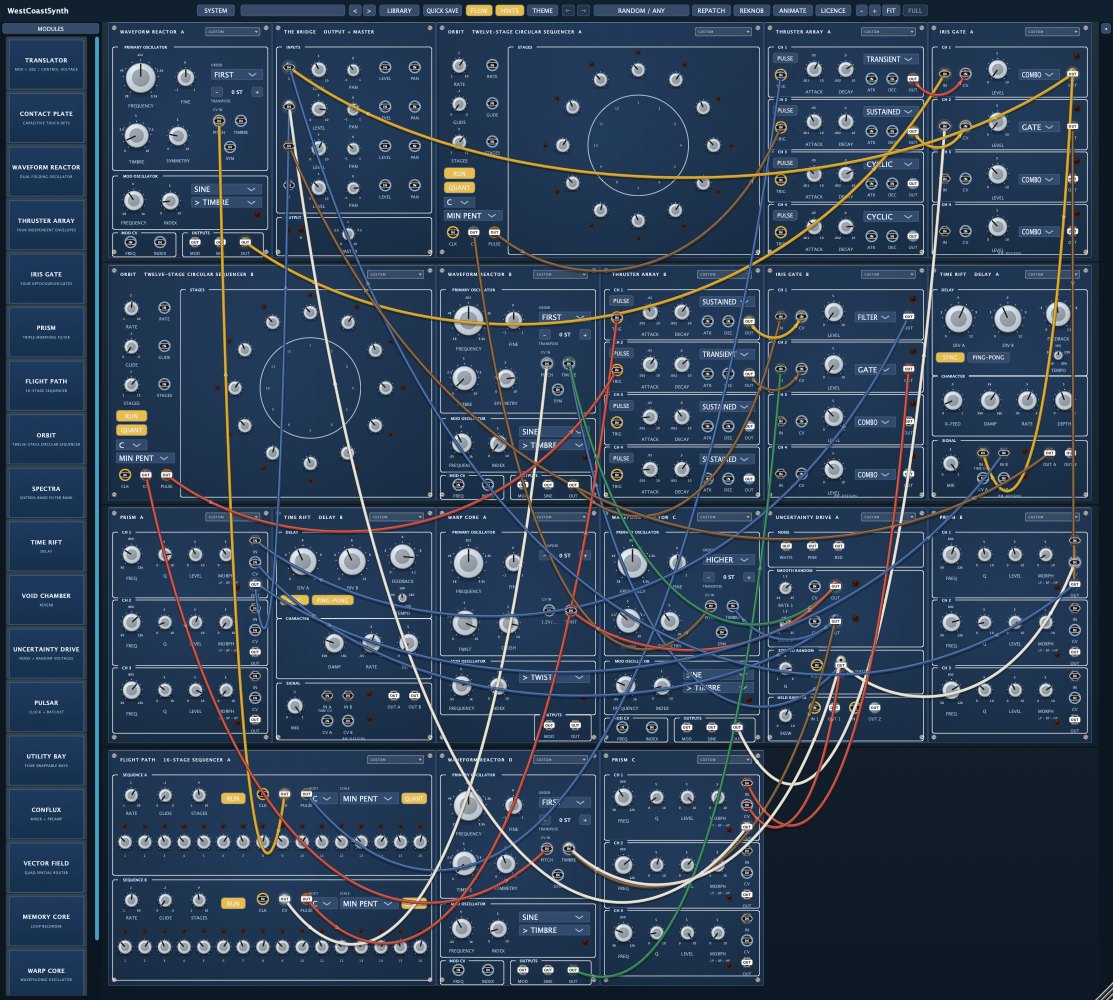
The patching ideas apply across editions. These steps use the desktop controls; Touch has its own layout. Available modules and labels can vary with your app version.
Make a playing instrument in one click, then explore what else it can do. You don’t need to add modules or draw cables to get started.
Chooses modules, connects them and sets their controls. Use it when you want a fresh starting point.
Uses the modules already in your rack and changes the wiring between them. Knob settings can change too. Use it to explore another version of that system.
RANDOM → listen → REPATCH → compare → QUICK SAVE. Start fresh when you want a new instrument; repatch when you want to hear more possibilities from the modules you have.
On desktop, right-click the RANDOM or REPATCH button itself to open its settings. On a Mac trackpad, use a two-finger click with secondary click enabled, or Control-click. Change a setting, click outside the panel to close it, then left-click the same button to hear a new result using those choices. Opening settings does not generate a patch.
Choose what kind of system it builds next.
Lock rack keeps the case size steady. Lock panels and Lock cables keep the panel finish and cable colours steady; they do not preserve the patch wiring.
Choose how it explores the modules you already have.
Try a low knob-variation amount and sparse cabling first. Left-click REPATCH, listen, then use Undo to compare. RESET TO DEFAULTS restores the Repatch settings if you want a fresh starting point.
Check mute, device volume and the selected output in Audio/MIDI settings. In a DAW, check the instrument track and master output. If your patch uses MIDI, try a keypress. You can also open a factory patch such as Aurora Shield in LIBRARY → Atmospheric. See troubleshooting for a signal-by-signal check.
You don’t need to understand every panel to make something worth keeping. Start with these four places.
Your working instrument. On desktop, click an empty rack space to add a module, or drag a module from the drawer. If you run out of room, choose a larger case in SYSTEM.
Open LIBRARY or click the patch name to browse factory and saved patches. The previous / next library buttons browse sounds; the history buttons recover your edits.
RANDOM builds a system. REPATCH changes its wiring and can vary settings. REKNOB changes settings. ANIMATE keeps selected knobs moving over time.
This is the way out. Audio must reach one of its numbered inputs. The channel LEVEL, PAN and overall MASTER determine what reaches your speakers.
Tap an empty rack space to add a module. Use Modules to browse or remove modules, and play the Contact Plate by touch. Follow the same source → shaping → output idea below; desktop right-click instructions refer to the desktop edition.
| Control | What changes | Use it when… |
|---|---|---|
| RANDOM | Modules, cables and settings | You want a fresh starting point. |
| REPATCH | Cables; settings may change too | You like the modules and want a new relationship. |
| REKNOB | Knob settings; rack and wiring stay | You want a variation of the same patch. |
| ANIMATE | Selected knobs move continuously | You want the sound to evolve. |
| QUICK SAVE | Saves a new patch in My Patches | You hear something you want to keep. |
A cable carries either sound or an instruction. Ask “what is travelling here?” and even a busy patch starts to make sense.
The sound itself: an oscillator, a noise source, the output of a filter. Audio travels through audio jacks to The Bridge.
SOURCE → SOUND SHAPING → OUTPUTA changing instruction: pitch, brightness, level or position. An envelope can open a gate; a slow cycle can move a timbre.
CONTROL → A PARAMETER INPUTA timing instruction. A pulse says “start now”. A gate can stay high while a key is held, so an envelope can sustain.
CLOCK OR KEY → TRIGGERDrag from an output jack to a compatible input. Audio and control use separate patch domains; a sound output cannot be patched into a CV input. Turn on HINTS to show IN / OUT and suggested destinations. Cable colours change with your chosen colourway, so follow the labels too. On desktop, right-click an input to unpatch it.
A low-pass gate closes down brightness as it gets quieter. That connected change is part of the plucked, woody character you’ll build next.
A continuous oscillator becomes a note when an envelope opens a gate. Build this small system and hear each part do its job.
Before you start: QUICK SAVE your current patch, stop ANIMATE, then choose SYSTEM → Clear system (silence + init). Add Waveform Reactor, Thruster Array and Iris Gate; keep The Bridge. Translator may also remain in the rack, ready for the keyboard tutorial. Use channel 1 throughout.
| Cable | From · output | To · input | Purpose |
|---|---|---|---|
| 1 · Audio | Waveform Reactor · OUT | Iris Gate · CH 1 IN | Send the tone to the gate. |
| 2 · Audio | Iris Gate · CH 1 OUT | The Bridge · input 1 | Send the shaped sound to the output. |
| 3 · CV | Thruster Array · CH 1 OUT | Iris Gate · CH 1 CV | Open the gate with an envelope. |
A bright attack that becomes darker as it fades. Compare Iris Gate COMBO with GATE: GATE changes amplitude without the same closing filter. Return to COMBO for the rounded pluck.
Silent: check the two audio cables, Bridge channel 1 LEVEL and MASTER, then press Thruster Array channel 1 PULSE in TRANSIENT mode. A drone: make sure Iris Gate channel 1 LEVEL is at zero and the envelope is plugged into the same channel’s CV input. FILTER mode shapes brightness without closing amplitude in the same way; use COMBO here.
Keep the repeating pluck from tutorial 2. Add one more cable so every note can arrive with a different shade.
The note timing stays familiar while the tone brightens and softens. If the sound stays very bright, lower the base TIMBRE setting or remove this cable to compare.
Convert the plucked patch into a playable voice. Pitch chooses the note; gate tells the envelope when you’re holding a key.
This patch uses one oscillator voice, so start with single notes. If pitch is unexpectedly high or low, check the oscillator’s FREQUENCY / transpose settings. The on-screen Contact Plate also has PITCH and GATE outputs for a keyboard-free version of this patch.
You don’t need every module in every patch. These are the roles to reach for when you want one new possibility.
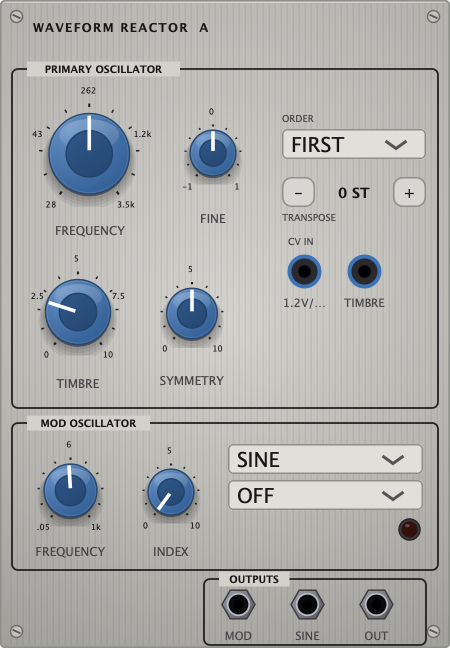
Dual folding oscillator
Start with FREQUENCY and TIMBRE. Use SINE for a gentler source or OUT for the shaped voice.
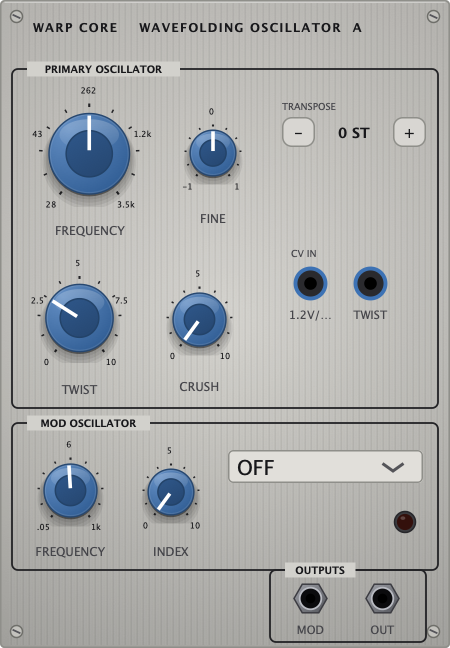
Wavefolding oscillator
Explore TWIST and CRUSH for a more abrasive source.
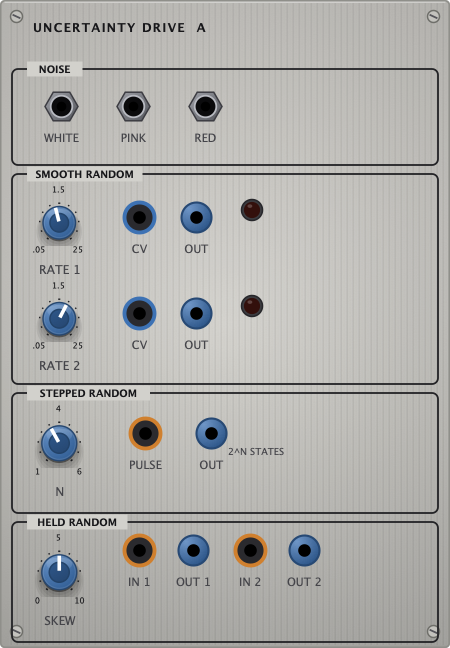
Noise + random voltages
Use noise as audio, or random CV to introduce variation. Sampled random sections need trigger pulses.
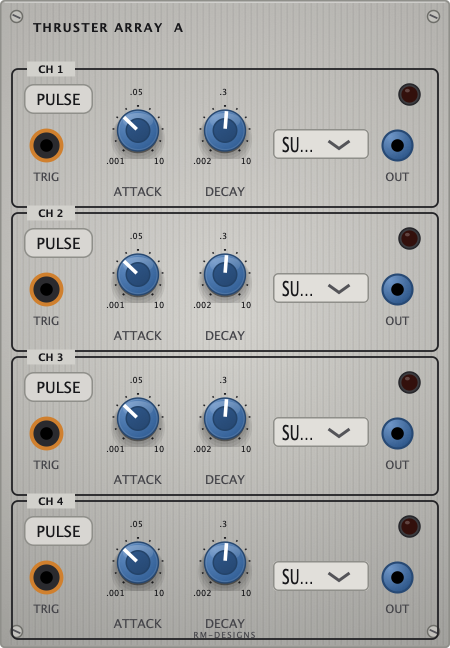
Four envelopes
TRANSIENT makes a strike; SUSTAINED follows a held gate; CYCLIC repeats as a modulation source.
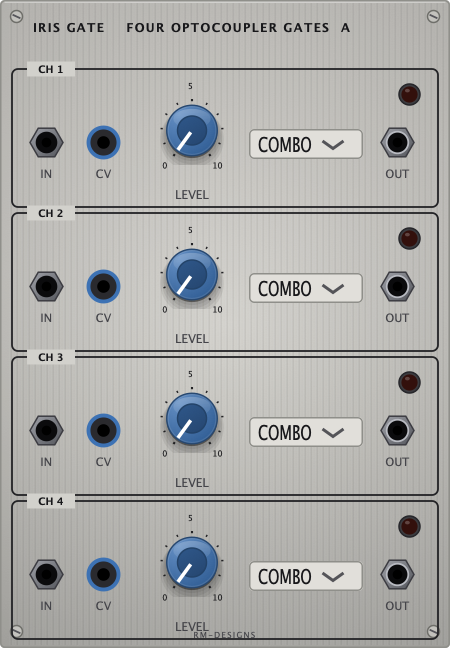
Four low-pass gates
GATE controls amplitude, COMBO controls amplitude and filtering, FILTER controls filtering.
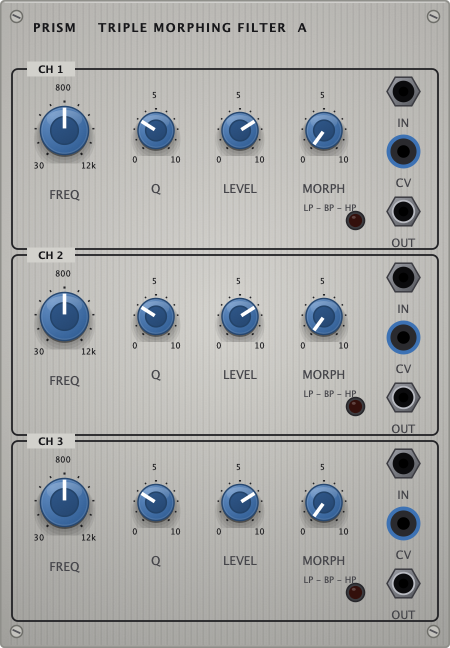
Triple morphing filter
Move between low-pass, band-pass and high-pass responses; add resonance carefully.
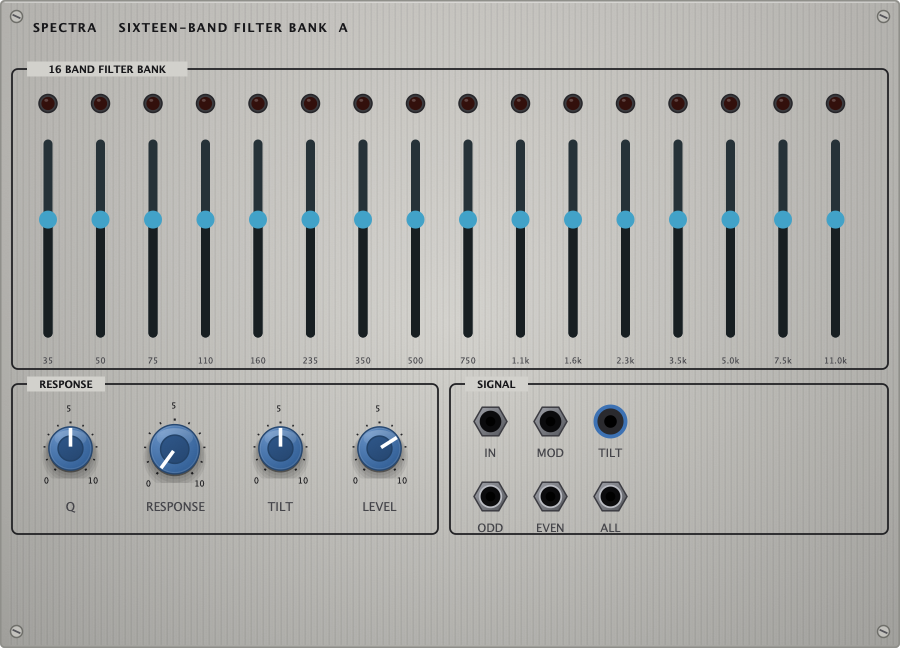
Sixteen-band filter bank
Shape a sound in separate frequency bands.
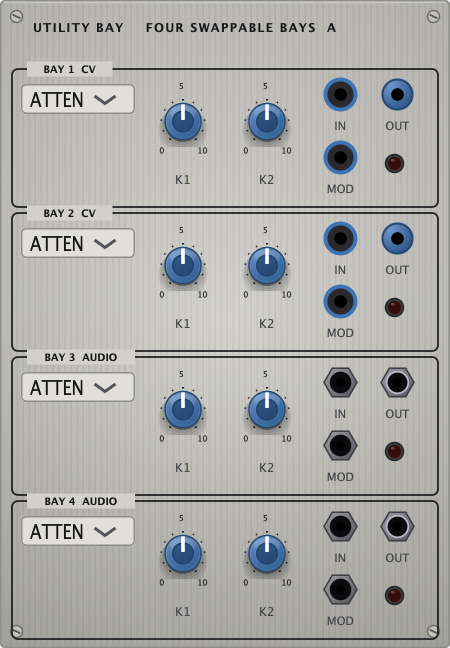
Four swappable bays
Choose the utility you need for each bay. Its available functions depend on your app version.
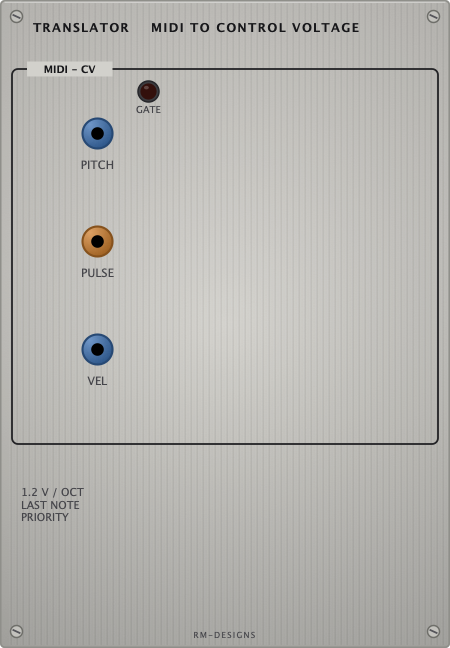
MIDI + OSC to control
Bring external performance into the rack. PITCH, GATE and velocity can each control a different destination.
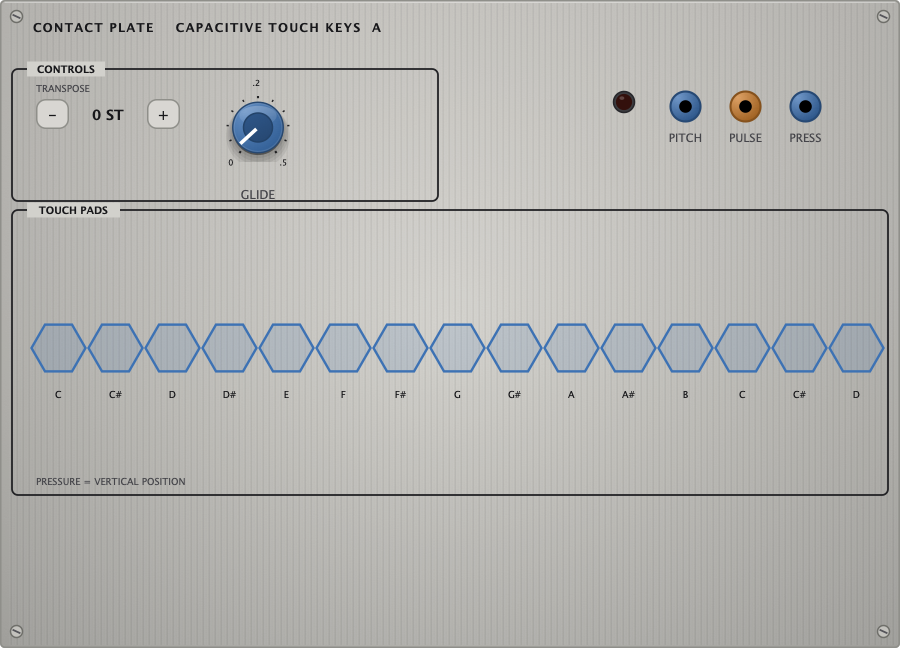
Touch keys
Play notes on screen; patch PITCH and GATE to your voice.
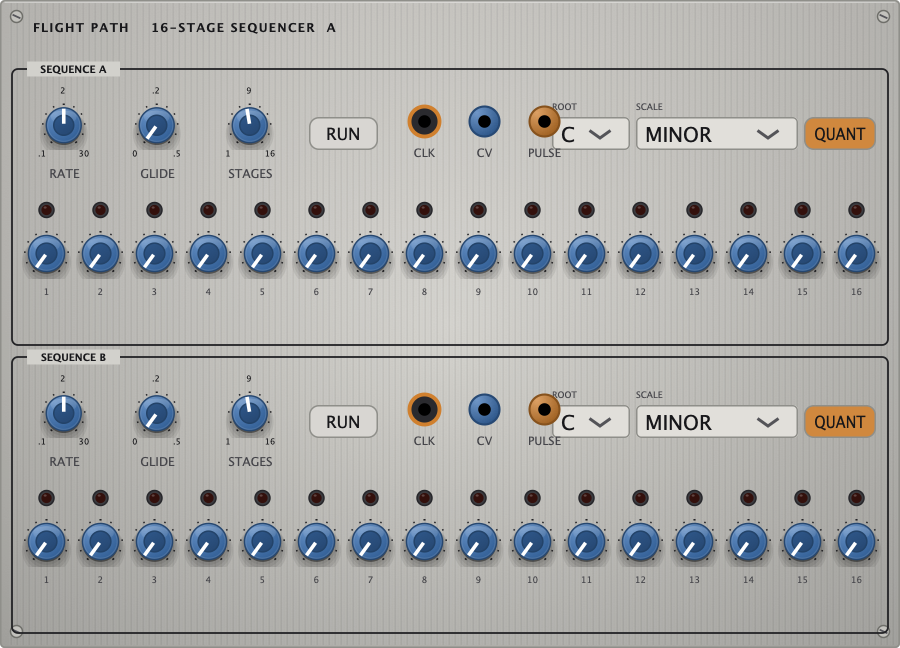
16-stage sequencer
Build a repeating phrase. Pitch output chooses notes and pulse output triggers envelopes.
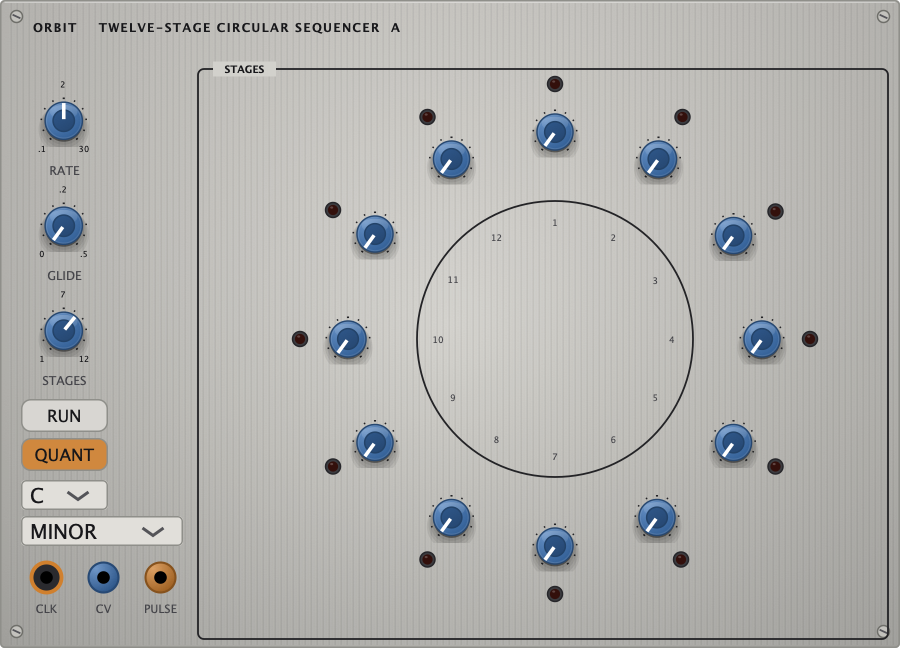
Circular sequencer
Explore repeating patterns arranged in a circle.
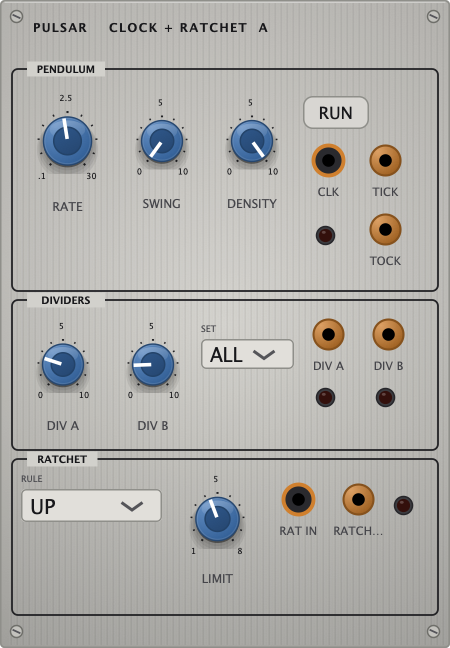
Clock + ratchet
Give events a pulse, then add repeated subdivisions.
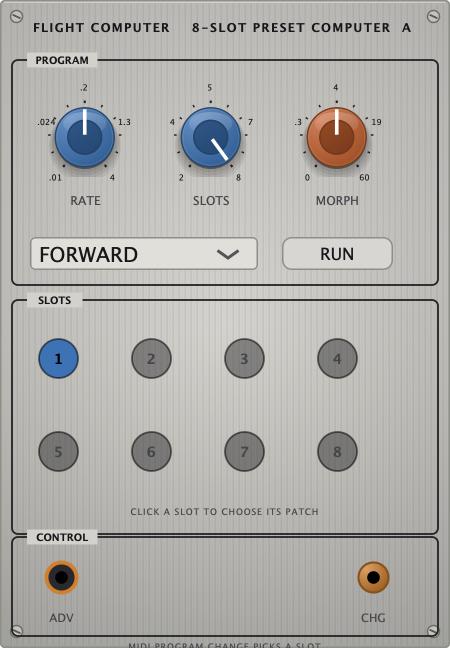
Preset computer
Move between patch slots. Cabling and module layout switch; knob settings can glide.
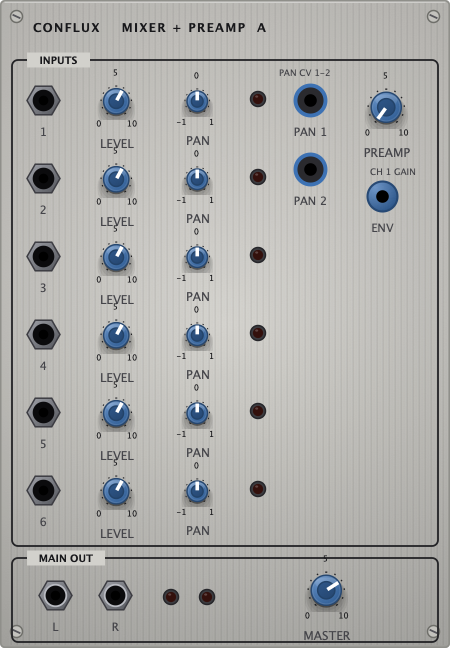
Mixer + preamp
Combine sources before processing them together.
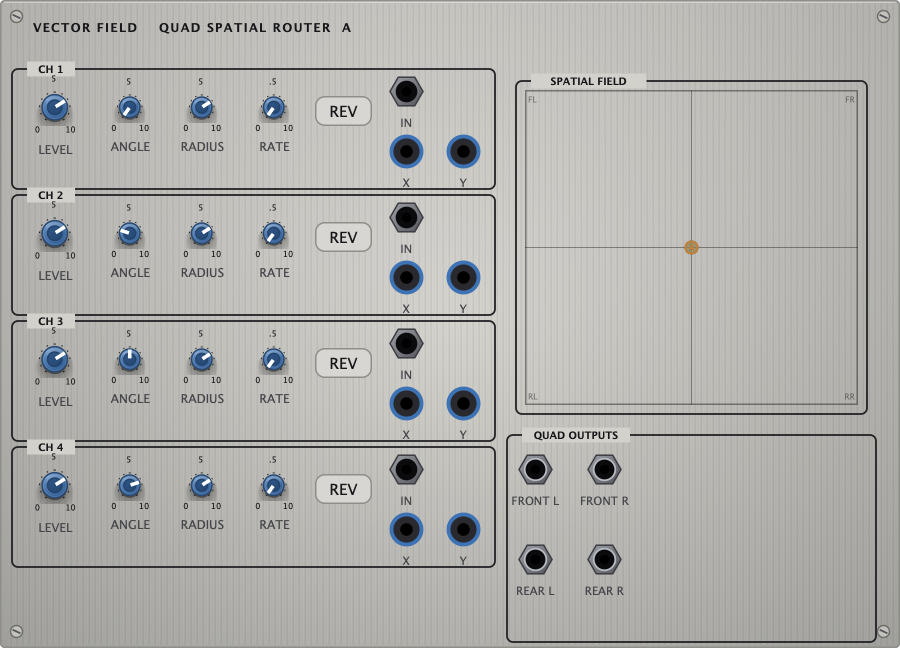
Spatial router
Move signals between destinations for spatial motion.
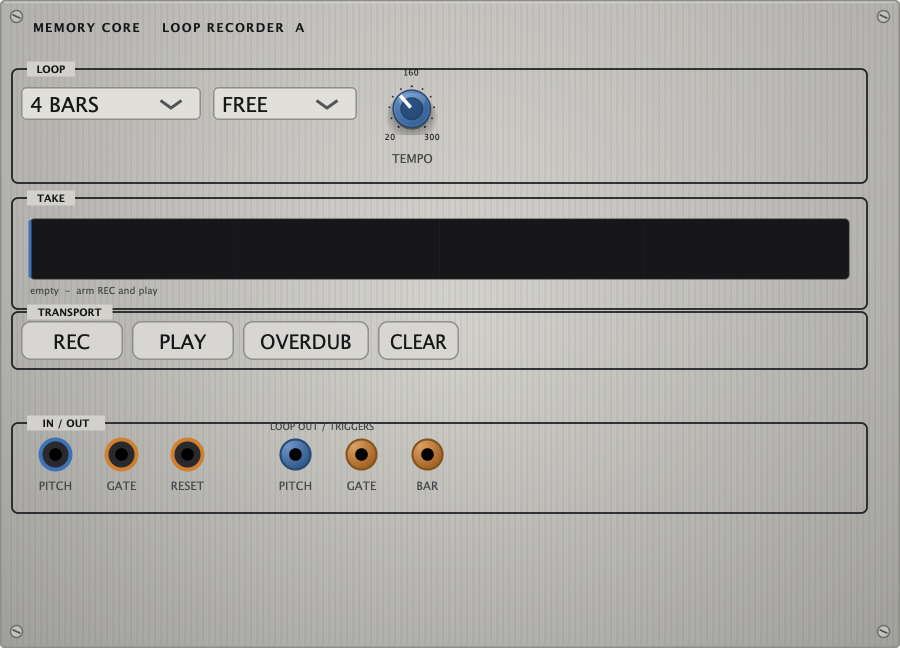
Loop recorder
Capture material and let it repeat inside the patch.
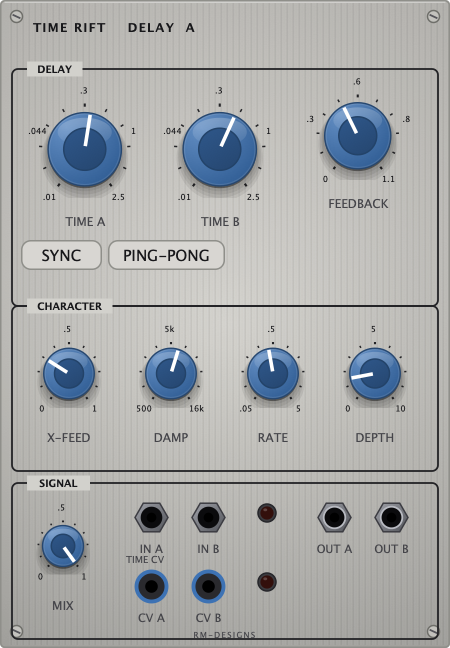
Delay
Add echoes. Start with a low wet mix and modest feedback.
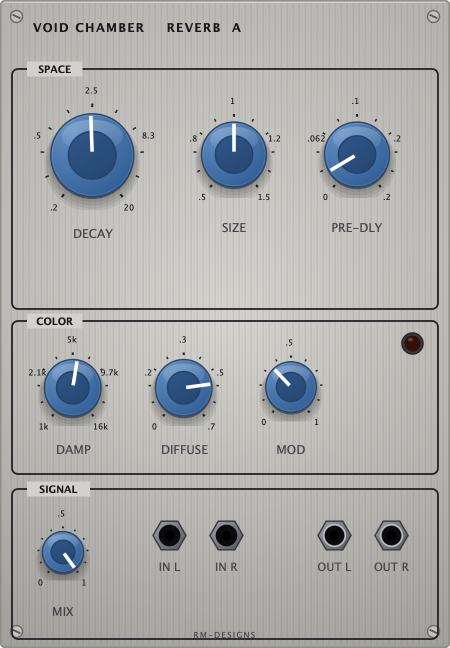
Reverb
Add a sense of space. Keep enough dry signal to preserve the attack.
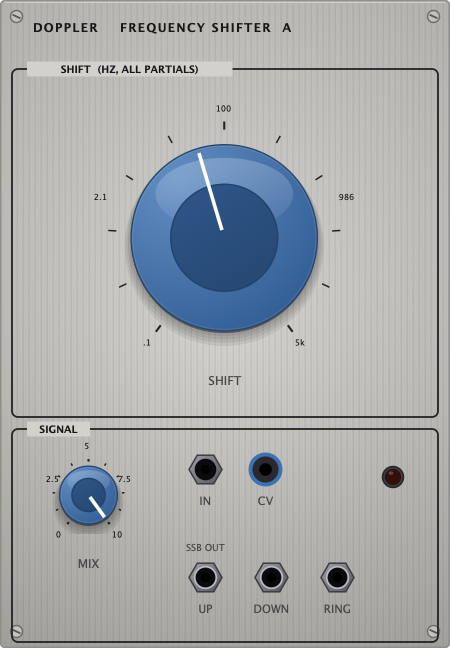
Frequency shifter
Shift the spectrum for metallic, moving textures.
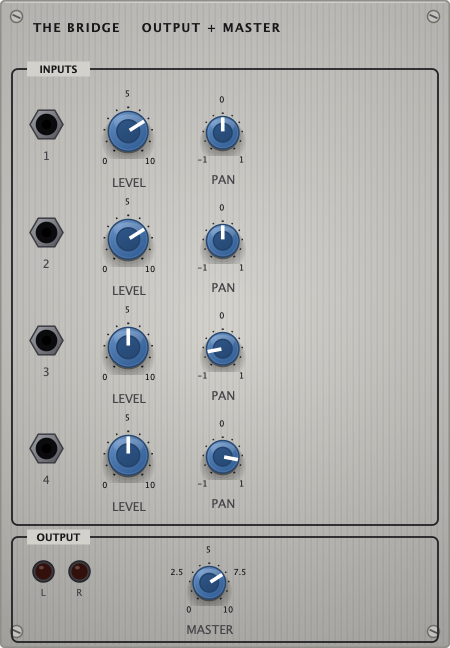
Output + master
Mix four audio inputs with individual levels and pan, then set overall MASTER.
Check the device volume, mute and selected audio output. In a DAW, check the track and master routing. Then follow the audio: source OUT → gate / effect IN → its OUT → a numbered Bridge input. Raise that Bridge channel’s LEVEL and MASTER. A triggered patch also needs a keypress, pulse or running cycle. Save your work before trying RANDOM as a separate sound check.
Change one thing at a time. Reduce oscillator TIMBRE or modulation INDEX for a simpler tone. Lower effects mix and feedback to hear the dry voice. Simplify the audio path before adding more modulation. Lower the output volume before a large change.
Use history Back / Undo. On desktop, Cmd/Ctrl+Z undoes and Cmd/Ctrl+Shift+Z redoes. The library arrows browse presets; they don’t undo edits. History holds up to 100 patch snapshots in this session. QUICK SAVE creates a patch you can reopen later. Making a new edit after going back replaces the redo branch.
Set Flow to Simple for direction and strength, or Detailed for traces and a selected-cable readout. Trace it from its output to its input and read both labels. Remove one connection and listen to the difference, then use Undo to restore it.
Look for ANIMATE, random-voltage sources and Flight Computer recalls. Stop the animator while editing. A saved generative patch can still produce changing events when you reopen it; saving the patch stores its setup, rather than a fixed audio performance.
Keep exploring
Save often. Make one change. Listen longer than you think you need to.